
Enrolling Clients Manually
Enroll a client in a program directly from the AllCoach admin by creating an order — no payment required for manual enrollments.
Last updated on May 19, 2026
Enrolling Clients Manually
You can enroll a client in a program directly from the admin by creating an order. This is useful for clients you are invoicing separately, free programs, or beta testers.
Prerequisites
The program must exist (draft or active)
The client must have a WordPress account on your site (or you can create one first — see below)
How to Manually Enroll a Client
Go to AllCoach → Orders
Click New Order
Select the Client from the dropdown
Select the Program to enroll them in
Set Status to Confirmed to activate the enrollment immediately, or Pending if you want to confirm payment first
Set Payment Method to Offline
Enter the Amount (set to 0 for free or complimentary enrollment)
Click Create Order
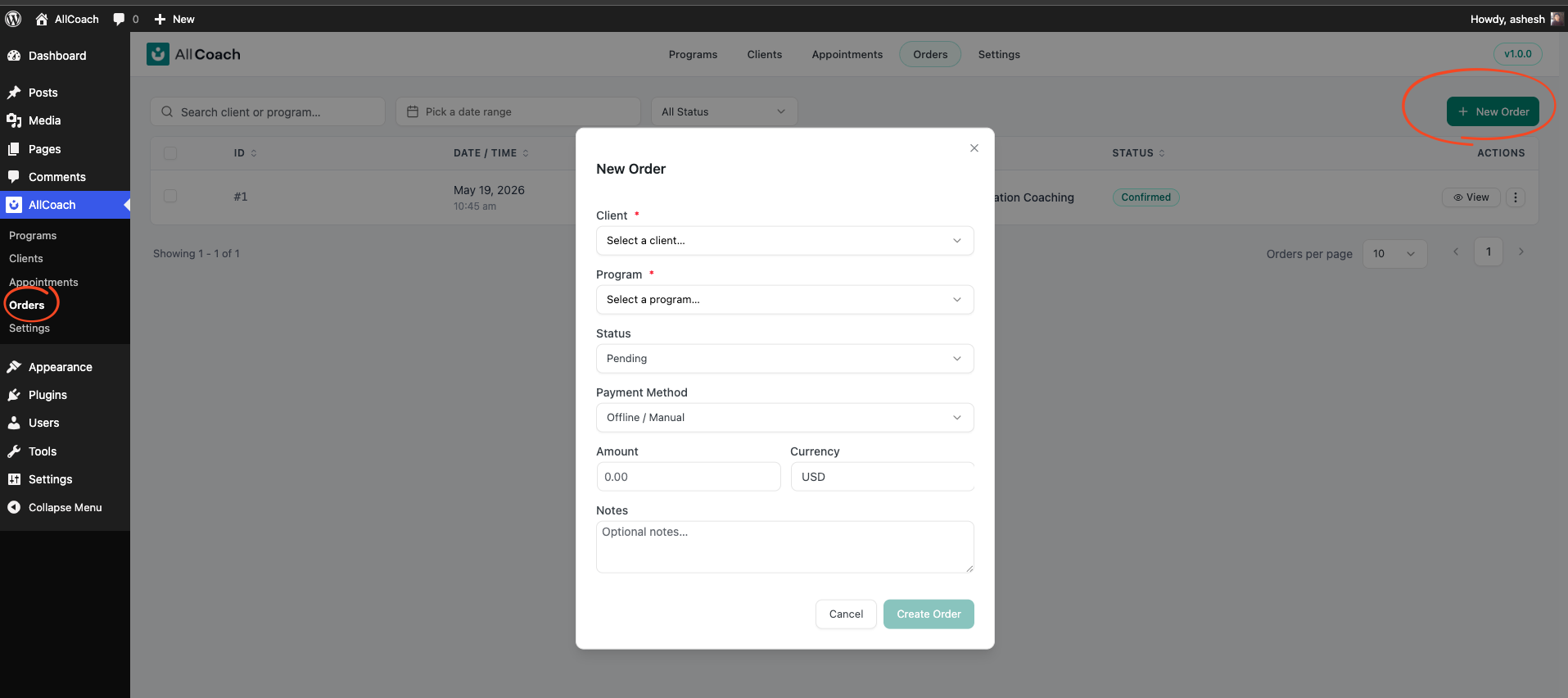
The client's enrollment becomes active as soon as the order status is Confirmed.
Creating a New Client Account
If the client does not have an account yet, create one before creating their order:
Go to AllCoach → Clients → Add New Client
Enter their name and email address
AllCoach creates a WordPress account and sends them a welcome email with a link to set their password
Then follow the steps above to create their order
Enrollment Status
Status | Meaning |
|---|---|
Active | Client is enrolled and can access the program |
Complete | All activities submitted; program finished |
Cancelled | Enrollment was cancelled |
Expired | Enrollment passed its expiry date |