
Contracts
ProCreate and manage legally binding coaching agreements that clients sign during checkout or from their dashboard, with automatic version tracking and signature storage.
Last updated on Aug 6, 2026
Create reusable coaching agreements that clients must sign before enrolling in a program.
Clients review the agreement, enter their full legal name, and provide a legally binding signature. A snapshot of the signed agreement is stored permanently, even if the template is edited later.
Prerequisites
AllCoach Pro
Contracts add-on enabled
Enable Contracts
Go to AllCoach → Add-ons.
Enable Contracts.
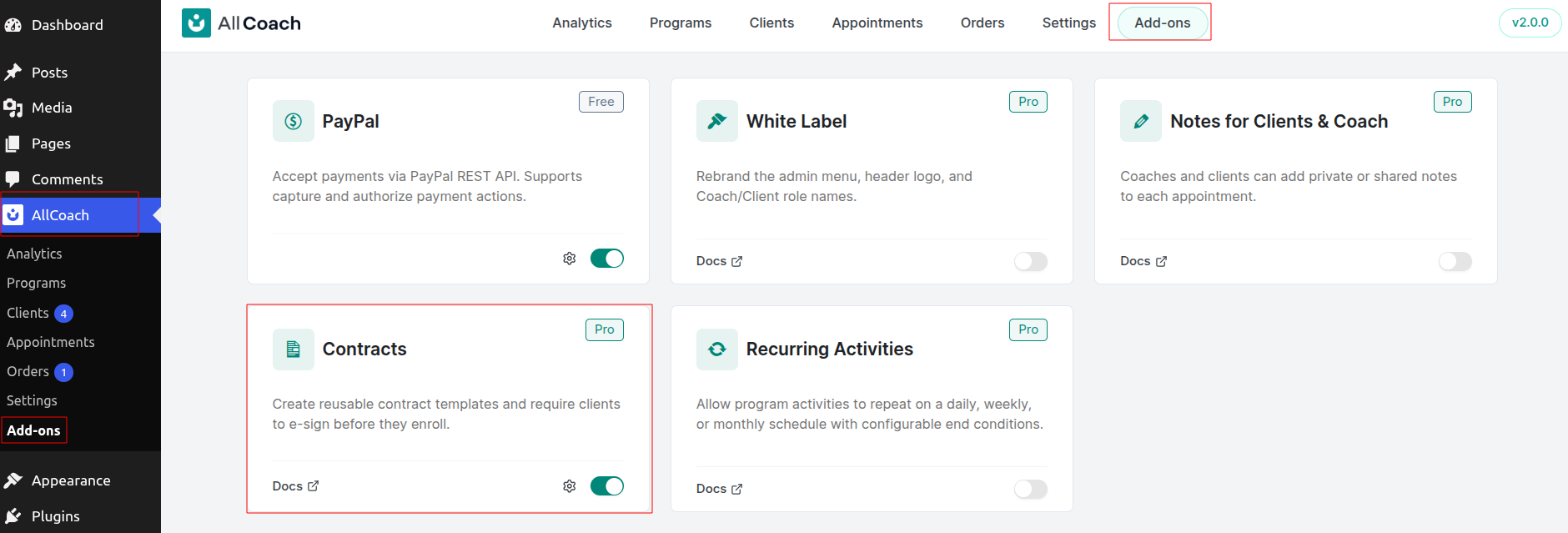
A valid Pro license is required.
Create a Contract Template
Go to AllCoach → Settings → Contracts.
Click Add New.
Enter a template name.
Write your agreement.
Insert Smart Tags if needed.
Preview the agreement.
Click Save.
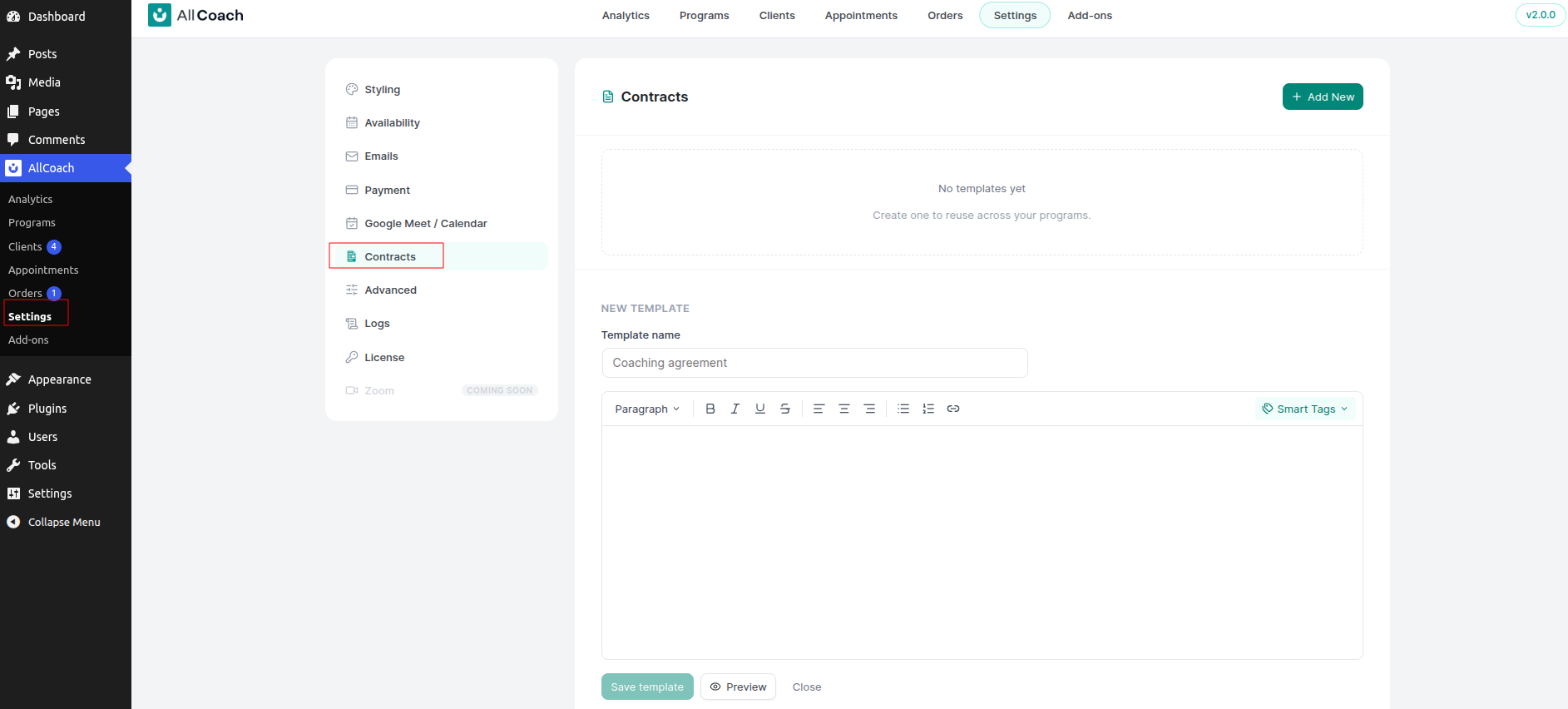
You can edit or delete templates from the template list. Deleting is permanent, and any program still using that template will need a new one selected.
Available Smart Tags
Smart Tags are replaced with real values at the moment the client signs.
client_name — Client's name
client_email — Client's email
program_name — Program name
coach_name — Assigned coach (blank if the program has no coach)
price — Program price as a number only. Add the currency yourself: USD price
date — Signing date
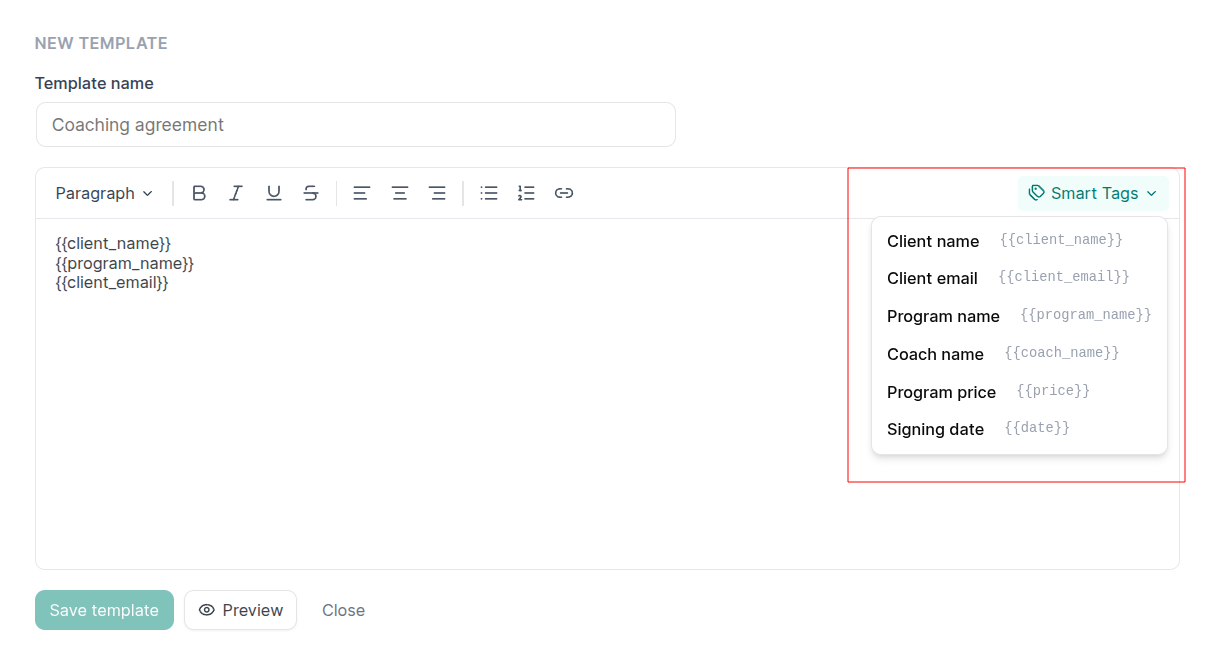
Misspelled tags appear exactly as typed in the signed agreement. Always preview before saving.
Require a Contract
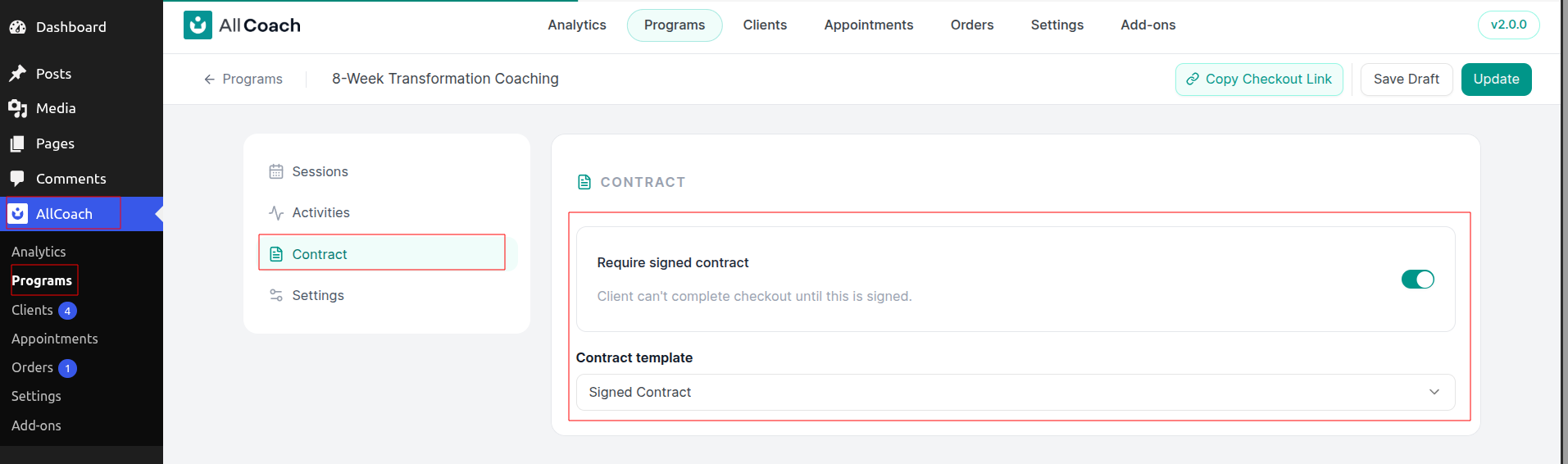
Go to AllCoach → Programs.
Edit the desired program.
Open the Contract tab.
Enable Require signed contract.
Select a contract template.
Client Experience
During Checkout
Clients must:
Read the agreement.
Accept the consent checkbox.
Enter their full legal name.
Click Sign & Continue.
Payment cannot continue until the contract is signed.
From the Dashboard
Clients can view pending and signed contracts from the Contracts page and sign outstanding agreements later.
Email Notification
After signing, both the client and coach receive an email containing the signed agreement and signature details. The agreement is included in the email body — there is no PDF attachment.
View Signed Contracts
Go to AllCoach → Clients → Client → Booking → Contract to view the signed agreement or check whether it is still awaiting a signature.
Privacy
Signed agreements are included in Tools → Export Personal Data. They are intentionally retained by Tools → Erase Personal Data as a legal record of consent.
Frequently Asked Questions
Can a client change their signature?
No.
What happens if I edit a template after it has been signed?
Previously signed agreements remain unchanged.
Can guests sign contracts?
No. Clients must log in first.
Can I use the same template for multiple programs?
Yes.
Is the signed agreement a PDF?
No. It is sent in the email body and can be printed or saved from your mail client.