
Notes for Clients & Coach
ProEnable coaches and clients to attach private or shared notes to individual appointments for session reflections, action items, and working documentation.
Last updated on Aug 6, 2026
The Notes add-on lets coaches and clients attach notes to individual appointments. Notes can be kept private or shared with the other person. This is useful for session reflections, action items, or working notes.
Notes are attached to specific appointments, not to clients or programs. They appear inline wherever that appointment is displayed.
Prerequisites
AllCoach Pro
Notes add-on enabled at AllCoach → Add-ons
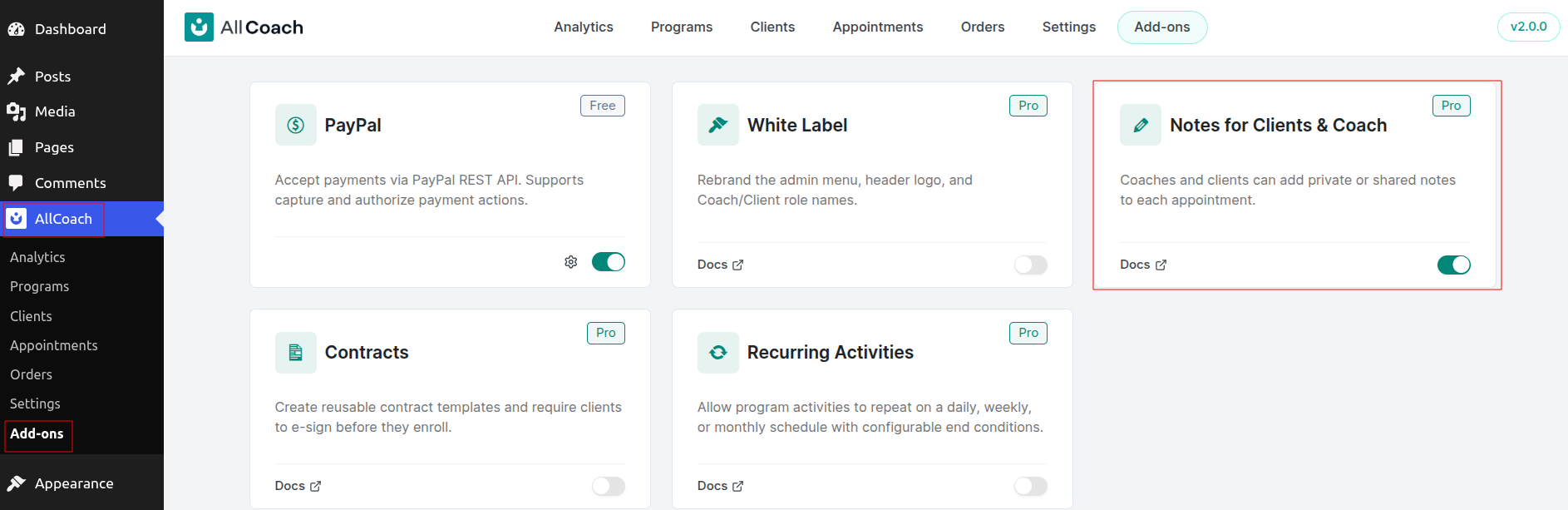
Enable the Notes Add-on
Go to AllCoach → Add-ons in your WordPress admin
Find the Notes for Clients & Coach card
Toggle the switch to enable it
The add-on is now active. There are no additional settings to configure.
Only administrators can enable or disable add-ons. If your AllCoach Pro license expires, the add-on becomes inactive, but your existing notes and settings are preserved. Renewing your license restores full functionality.
Where Notes Appear
Once enabled, notes are visible in three locations, always attached to a specific appointment:
For coaches and administrators:
AllCoach → Appointments → open an appointment → notes panel in the appointment view dialog
AllCoach → Clients → open a client → Sessions tab → Notes from this session under each session
For clients:
Client dashboard → My Appointments → Notes from this session under each appointment
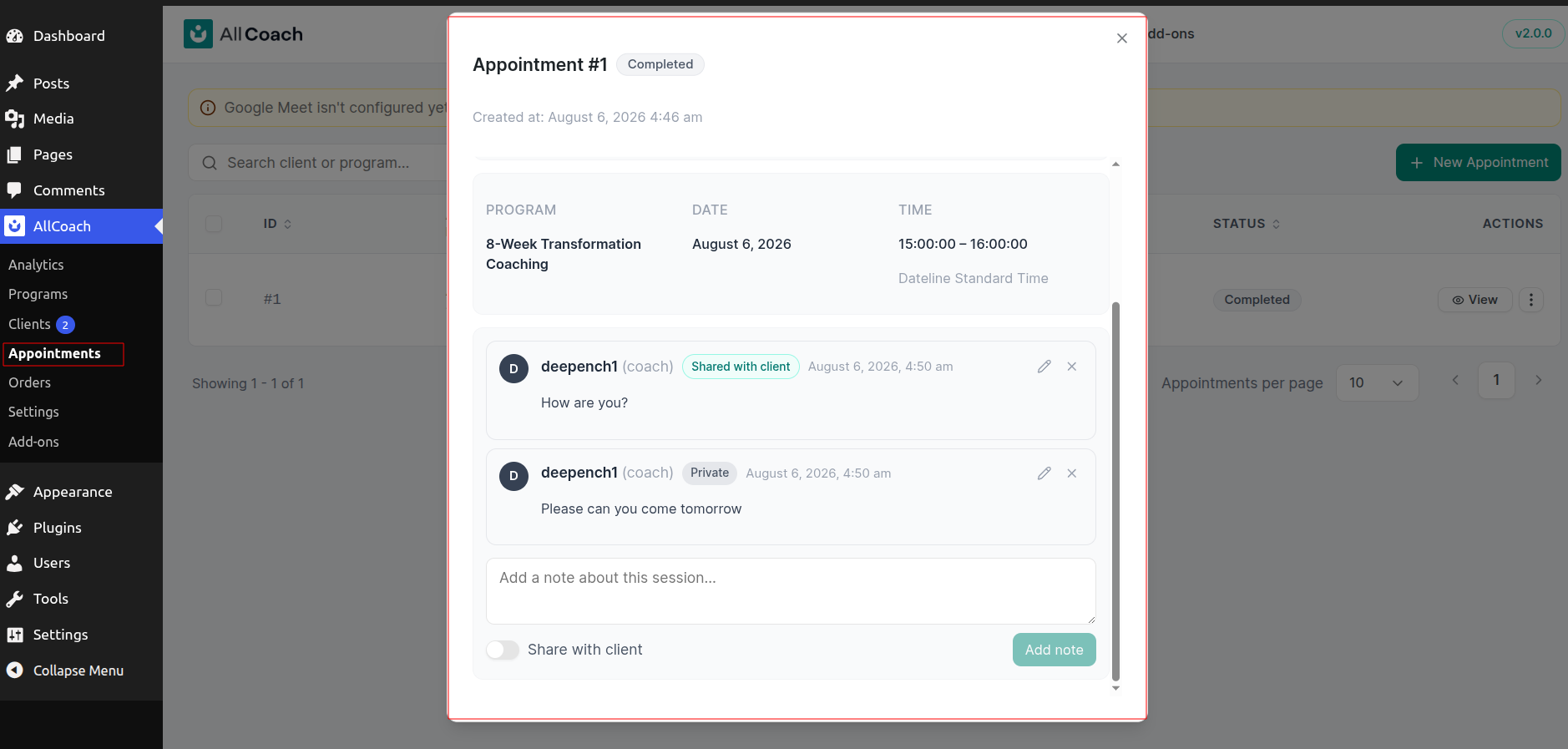
Add a Note as a Coach or Admin
Open the appointment or expand the Notes from this session section
Type your note in the text box (placeholder: Add a note...)
If you want the client to see this note, enable the Share with client checkbox
Click Add note
The note appears in the notes list immediately. If you shared it with the client, they will see it the next time they view this appointment.
Add a Note as a Client
Go to My Appointments in your client dashboard
Find the appointment and expand Notes from this session
Type your note in the text box
If you want your coach to see this note, enable the Share with coach checkbox
Click Add note
The note appears in the notes list immediately. If you shared it with your coach, they will see it the next time they view this appointment.
Notes are plain text only. Formatting, links, and file attachments are not supported.
Private and Shared Notes
Every note is private by default. Sharing is opt-in, one note at a time.
Coach notes:
Private: Visible only to the coach who wrote it and site administrators
Shared with client: Visible to the coach, administrators, and the client
Client notes:
Private: Visible only to the client who wrote it (not visible to coaches or administrators)
Shared with coach: Visible to the client, the coach, and administrators
A note's visibility cannot be changed after it is saved. To change visibility, delete the note and add it again with the correct sharing setting.
Edit and Delete Notes
You can edit and delete your own notes at any time. Coaches and clients cannot modify each other's notes.
To edit a note:
Click the pencil icon next to the note
Make your changes
Click Save or Cancel
To delete a note:
Click the X icon next to the note
Deletion happens immediately with no confirmation prompt and cannot be undone.
Notifications
Adding a note does not send an email or notification. The other person sees a shared note the next time they open the notes panel on that appointment.
Privacy and Data Export
Notes are included in WordPress personal data exports (Tools → Export Personal Data). When a user requests data erasure (Tools → Erase Personal Data), the system removes:
Notes that person wrote
Notes recorded about them as the client on appointments
Frequently Asked Questions
Are notes private by default?
Yes. Sharing is opt-in for each note.
Can my client see my private notes?
No. Only notes marked Share with client are visible to the client.
Can an admin read a client's private notes?
No. Client private notes are visible only to the client who wrote them.
Can I change a note from private to shared later?
No. Delete the note and add it again with the correct sharing setting.
Does adding a note notify anyone?
No. Notes do not trigger email or in-app notifications.
Can I attach a file to a note?
No. Notes are text only.
Is there one list of all notes for a client?
No. Notes belong to individual appointments and appear only in the context of that appointment.