Activities
Build interactive activities for your coaching programs — short answer, multiple choice, and media blocks.
Last updated on May 19, 2026
Activities
Activities are the interactive exercises clients complete inside a program. Each activity can contain a mix of content blocks and input fields.
What Is an Activity?
An activity is a single page of work assigned to a client — for example, a weekly reflection, a goal-setting worksheet, or an intake form. Clients complete it and submit; you can view their responses from the admin.
Activity Field Types
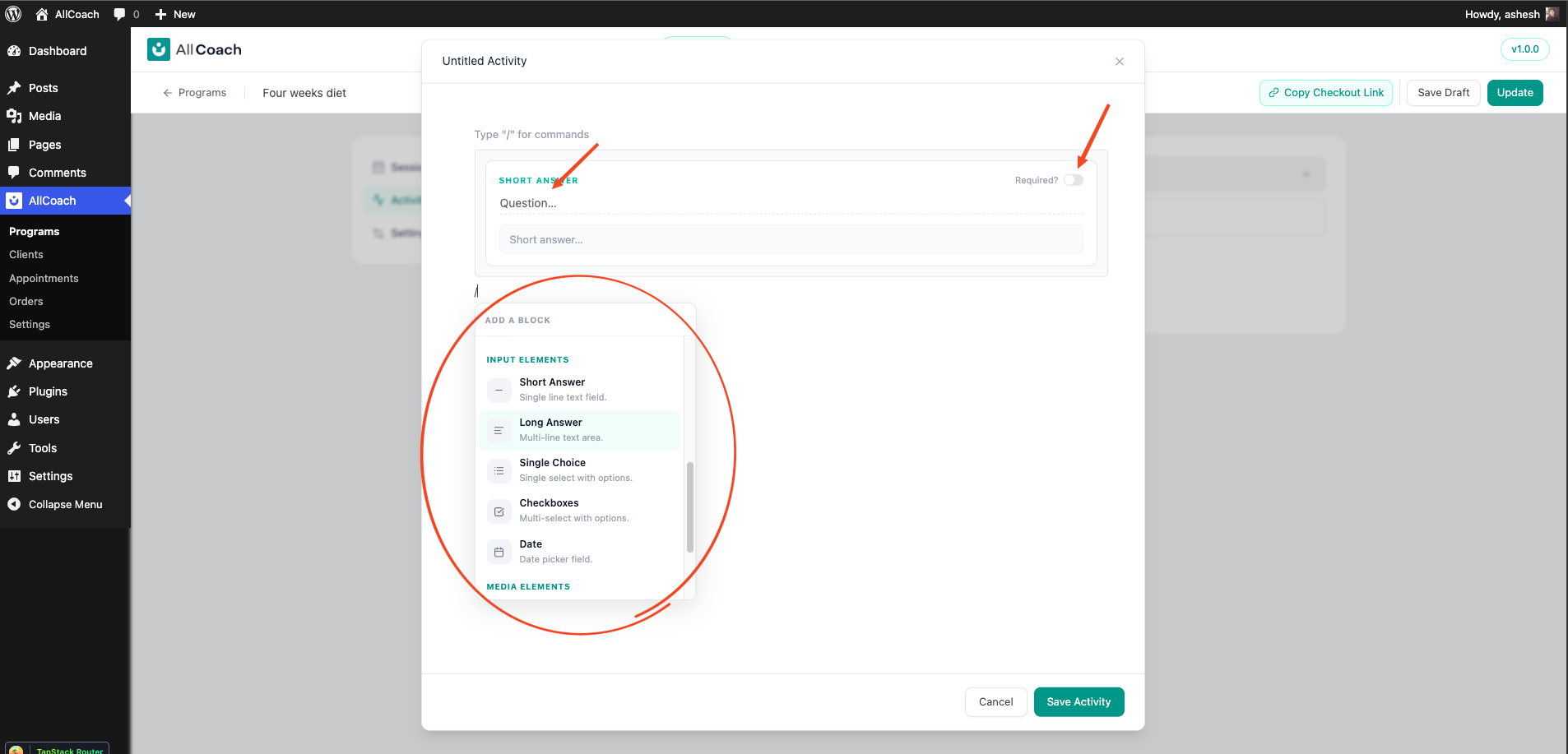
When building an activity, you can add the following field types:
Type | Description |
Short Answer | Single-line text input |
Long Answer | Multi-line text area |
Multiple Choice | Single selection from a list of options |
Checkbox | Multiple selections from a list of options |
Date | Date picker |
Image | Display an image inside the activity |
Video | Embed a video for clients to watch |
Audio | Embed an audio file |
Building an Activity
1. Inside a program, go to the Activities tab
2. Click Add Activity inside a section
3. Use the editor toolbar to add fields — type / to open the block menu
4. For each input field:
- Set a Label (the question or prompt)
- Toggle Required if clients must answer before submitting
- For choice fields, add your Options
Field Options
Required Fields
Mark a field as required to prevent submission until it is filled in. Required fields are validated on submit — clients see an inline error if they skip one.
Completing Activities (Client Side)
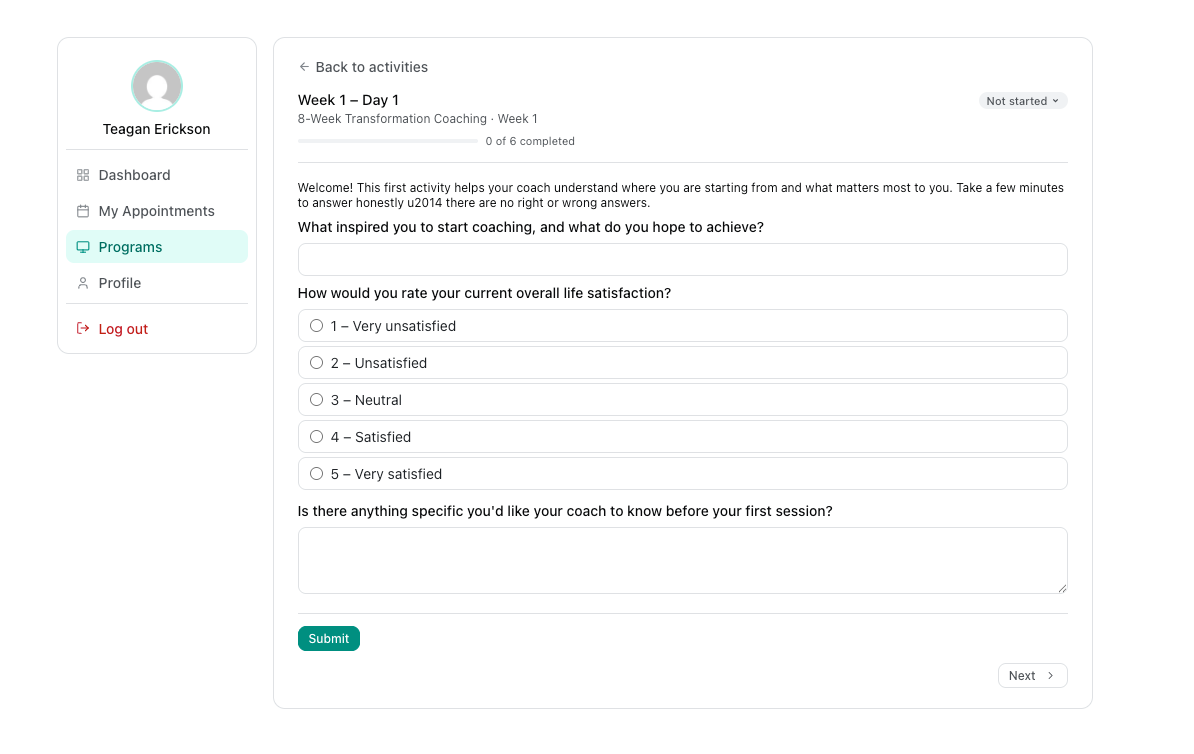
Clients see their activities inside the client portal. Each activity shows:
- All content and input fields you configured
- A Submit button at the bottom
Once submitted, the activity is marked Completed and all fields become read-only.
Viewing Responses (Coach Side)
After a client submits an activity, you can view their responses:
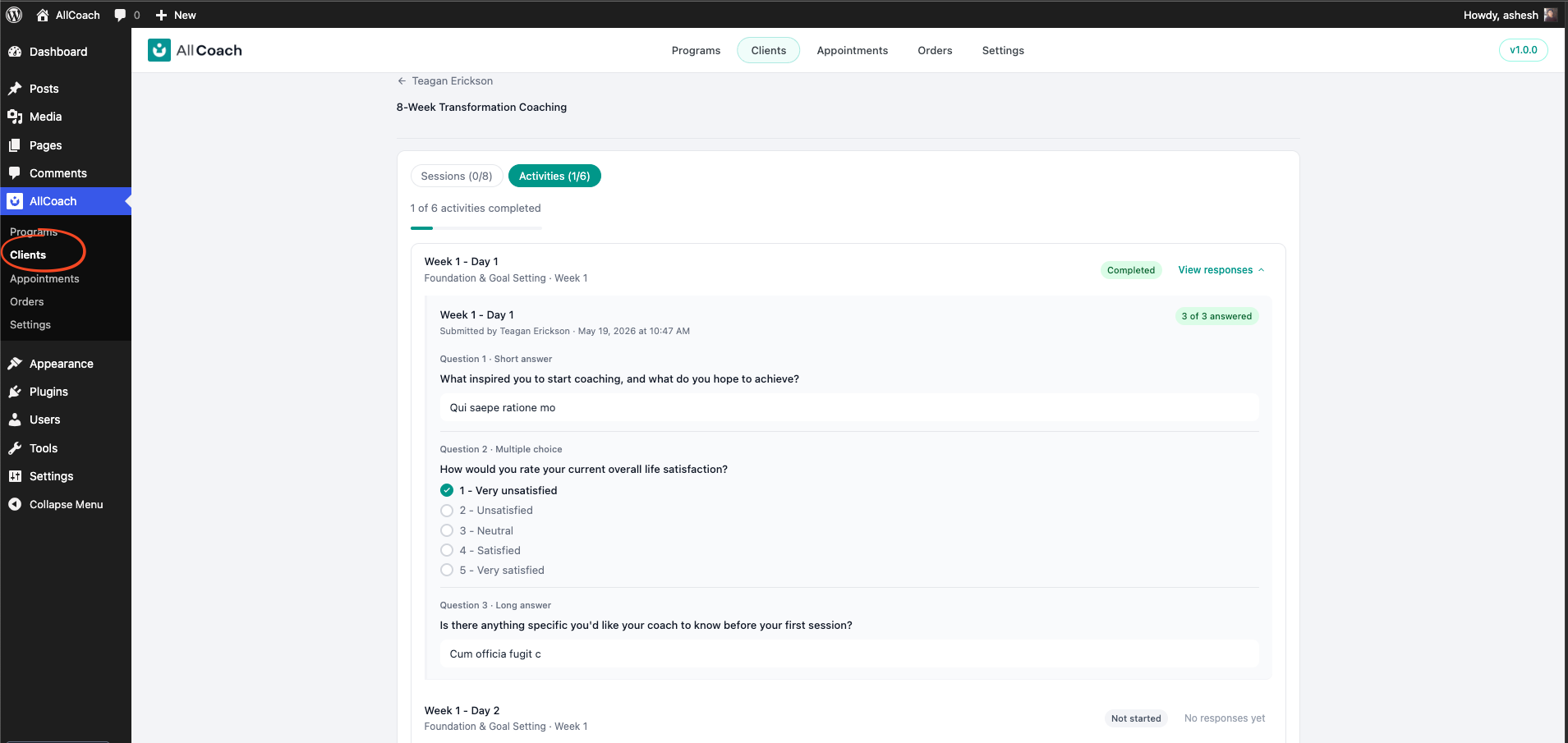
1. Go to AllCoach → Clients
2. Open the client's profile
3. Click on the enrollment
4. Select the activity to see all field responses