
Booking a Session
How clients book 1-on-1 sessions in AllCoach — the booking flow, confirmation emails, and how coaches cancel sessions.
Last updated on May 19, 2026
Booking a Session
Clients book sessions from the client portal. This page explains the booking flow from both the client and coach perspective.
Prerequisites
Google Meet must be set up and your Google account connected — see Google Meet Setup
The program must have sessions configured (duration and repetition count set)
Your availability must be configured — see Your Availability
The client must be actively enrolled in the program
Client: Booking a Session
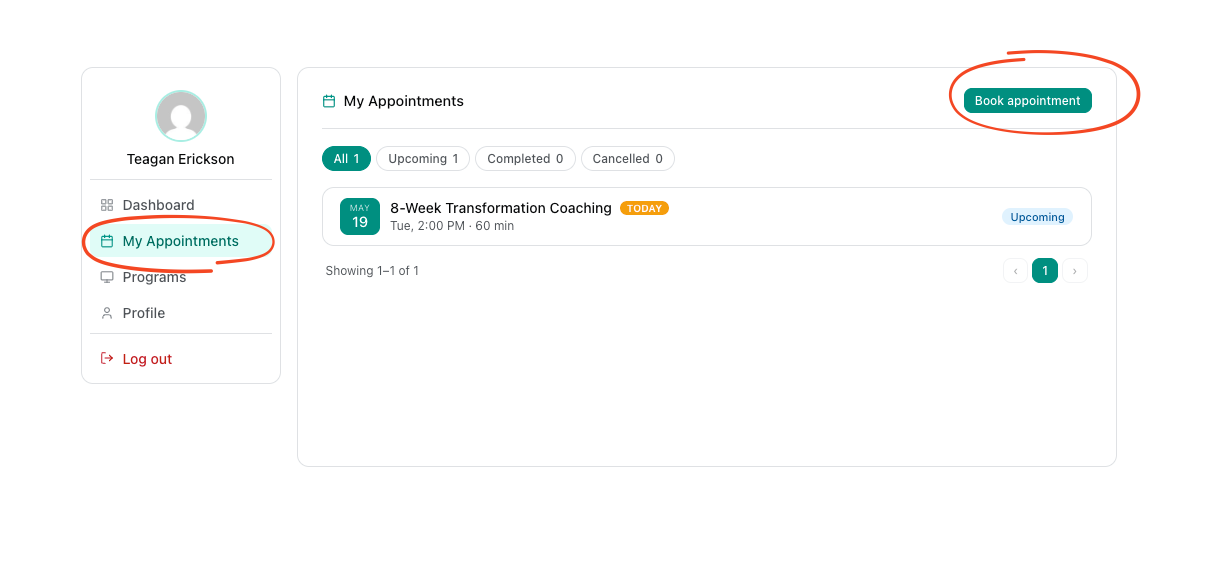
The client logs into the portal
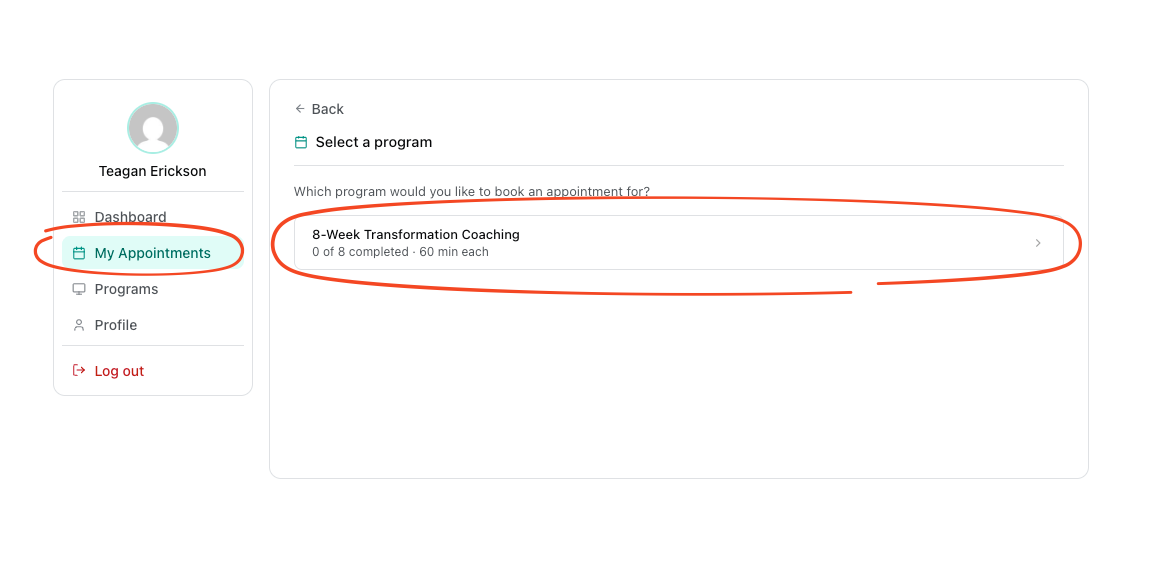
They open their enrolled program (or go to the Sessions tab)
They click Book appointment
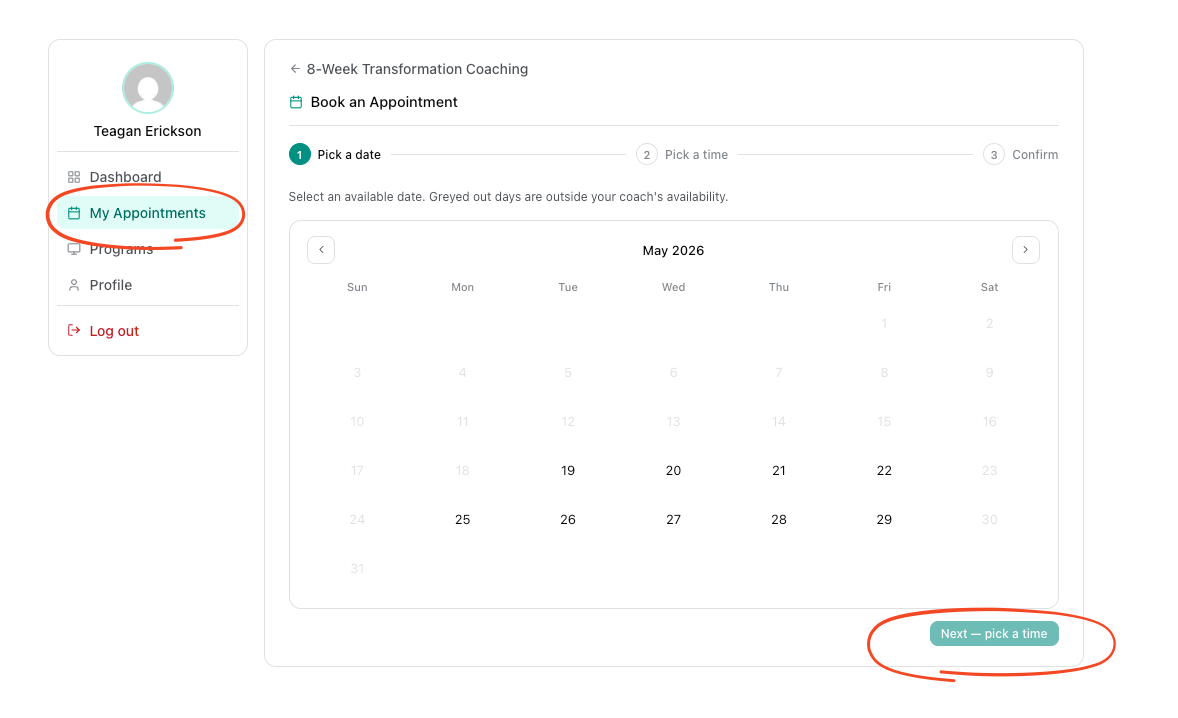
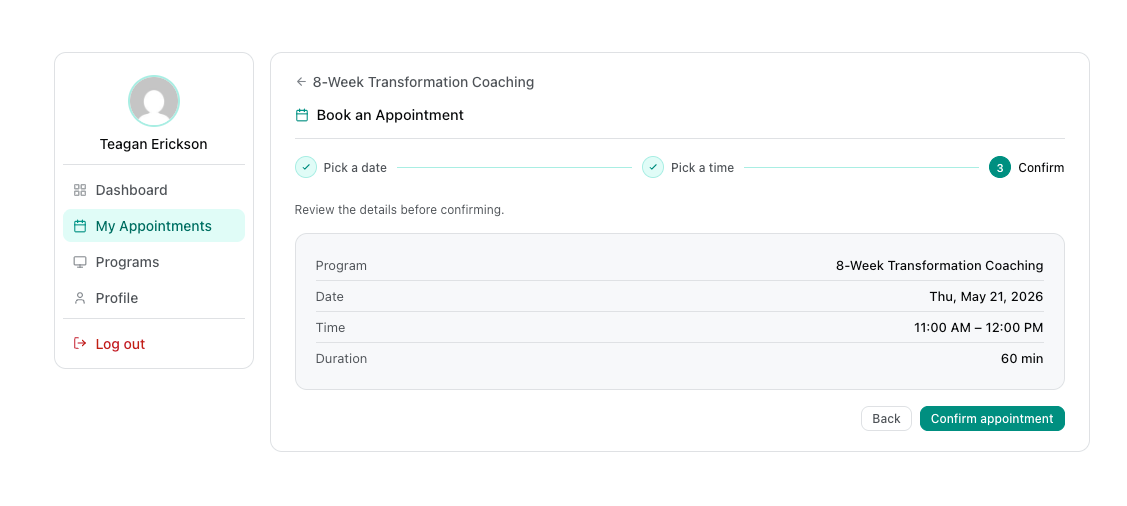
A calendar shows available dates based on your availability settings
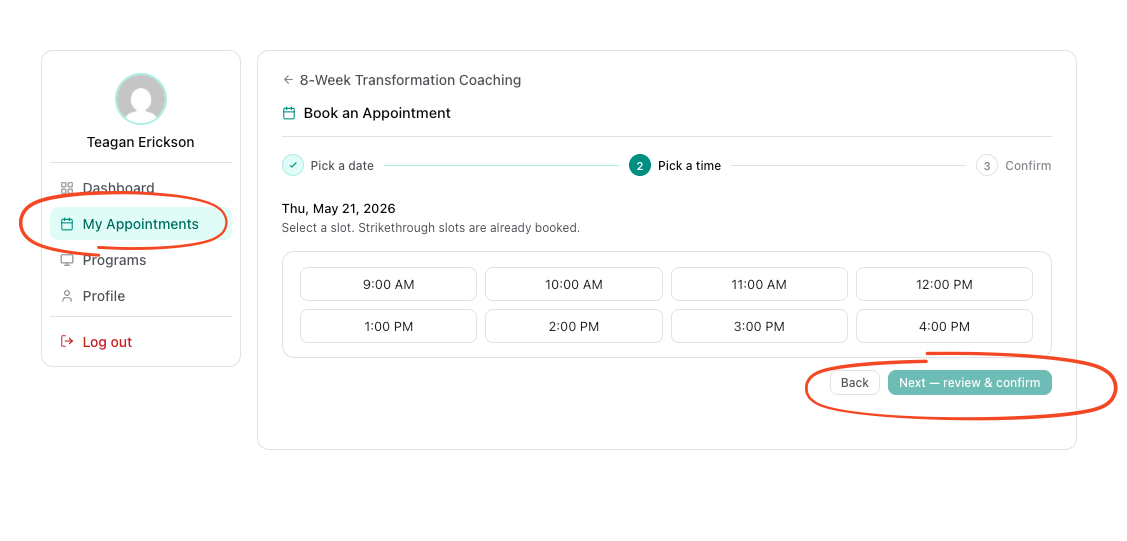
They pick a date and time slot
They confirm the booking
After confirming:
A Google Meet link is generated automatically
Both you and the client receive a confirmation email with the meeting link, date, and time
The session appears in the client's portal under Upcoming Sessions
Viewing Booked Sessions (Coach)
Your booked sessions appear in two places:
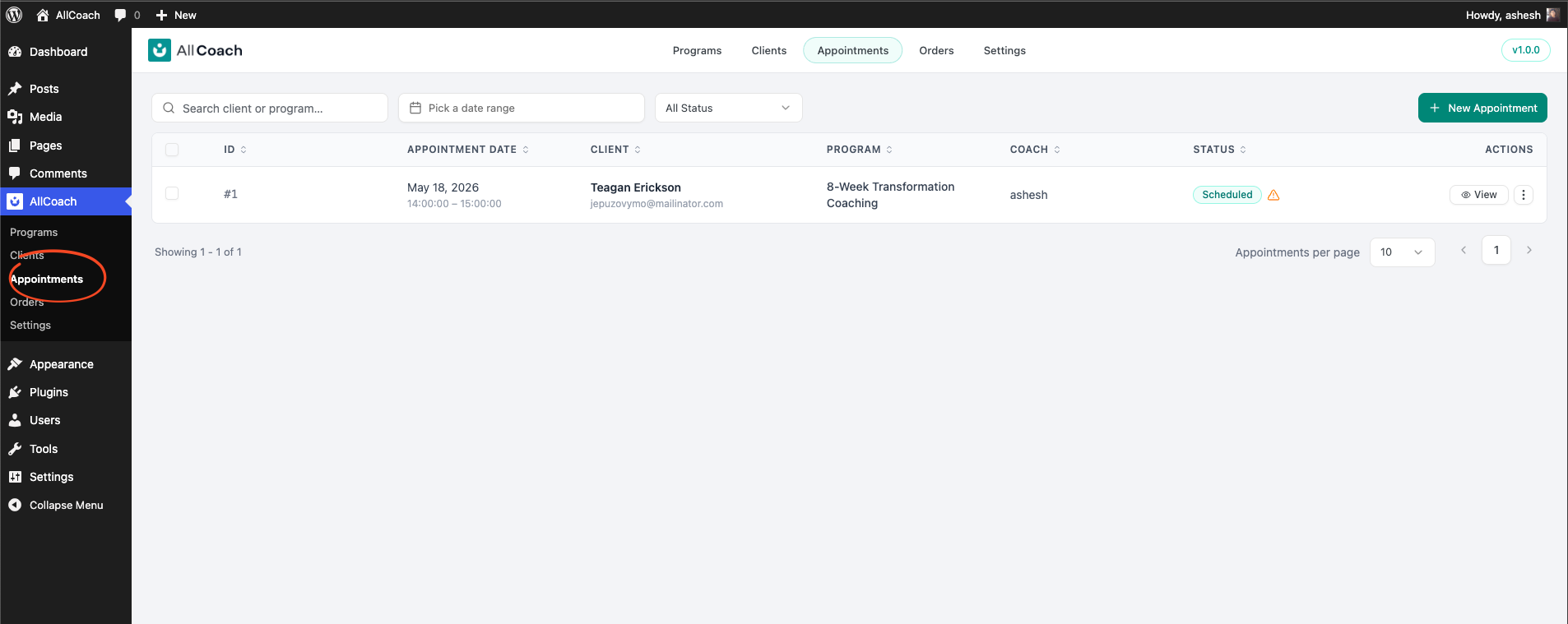
AllCoach → Appointments — full list of all sessions across all clients
Your Google Calendar — AllCoach adds the event directly
Cancelling a Session
Sessions can be cancelled by either the client or the coach.
Client: Cancelling a Session
The client logs into the portal
They go to the Sessions tab
They click Cancel next to the upcoming session
Both the client and coach receive a cancellation email
Coach: Cancelling a Session
Go to AllCoach → Appointments
Find the session you want to cancel
Click Cancel
Both you and the client receive a cancellation email
The cancelled session slot is returned to the client's available count so they can rebook if needed.